Highlight and download excerpts
This guide shows you how to highlight a live stream excerpt and download it as a video file.
Prerequisites
Rewyt doesn’t download excerpts directly, you need ypb for that.
- Rewyt installed as a desktop app or web app
- ypb installed
Note
If you’re running Rewyt as a web app,
ypbis already bundled inside its container, no separate install needed. Steps 1 and 2 below still apply, but for the download step, see Download excerpts with Compose instead.
Steps
-
Highlight an excerpt
Use the A and B buttons (or
aandbkeyboard shortcuts) to mark the start and end of your excerpt on the timeline.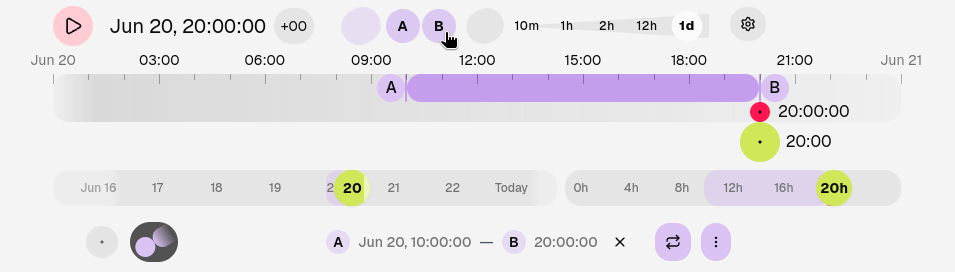
-
Copy the timestamp
Open the Highlight tab at the bottom of the interface. Click More, then select Copy timestamp. This copies a timestamp that tells ypb exactly which part of the stream to download, for example:
2026-06-20T10:00:00+03:00/2026-06-20T20:00:00+03:00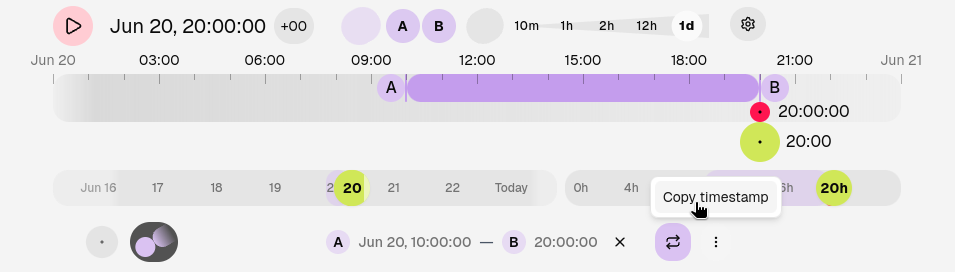
-
Download the excerpt
Run the download command with the copied timestamp and the YouTube video ID:
ypb download 2026-06-20T10:00:00+03:00/2026-06-20T20:00:00+03:00 abcdefgh123
By the end, you will have a downloaded file in your working directory when done.
See also
See Create a time-lapse video to turn your excerpt into a time-lapse.