Highlight and save clips
This guide shows you how to highlight a clip of a live stream and save it as a video file.
Prerequisites
Rewyt doesn’t save clips directly; you need ypb for that.
- Rewyt installed as a desktop app or via Compose
- ypb installed
Note
If you’re running Rewyt via Compose, ypb is already bundled inside its
container, no separate install needed. Steps 1 and 2 below still apply,
but for the last step, see Save clips with
Compose instead.
Steps
- Highlight an interval
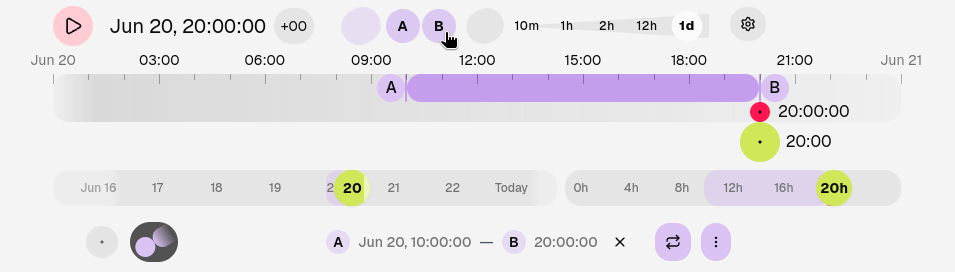
Use the A and B buttons (or a and b keyboard shortcuts) to mark the start and end of your clip on the timeline.
- Copy the download command
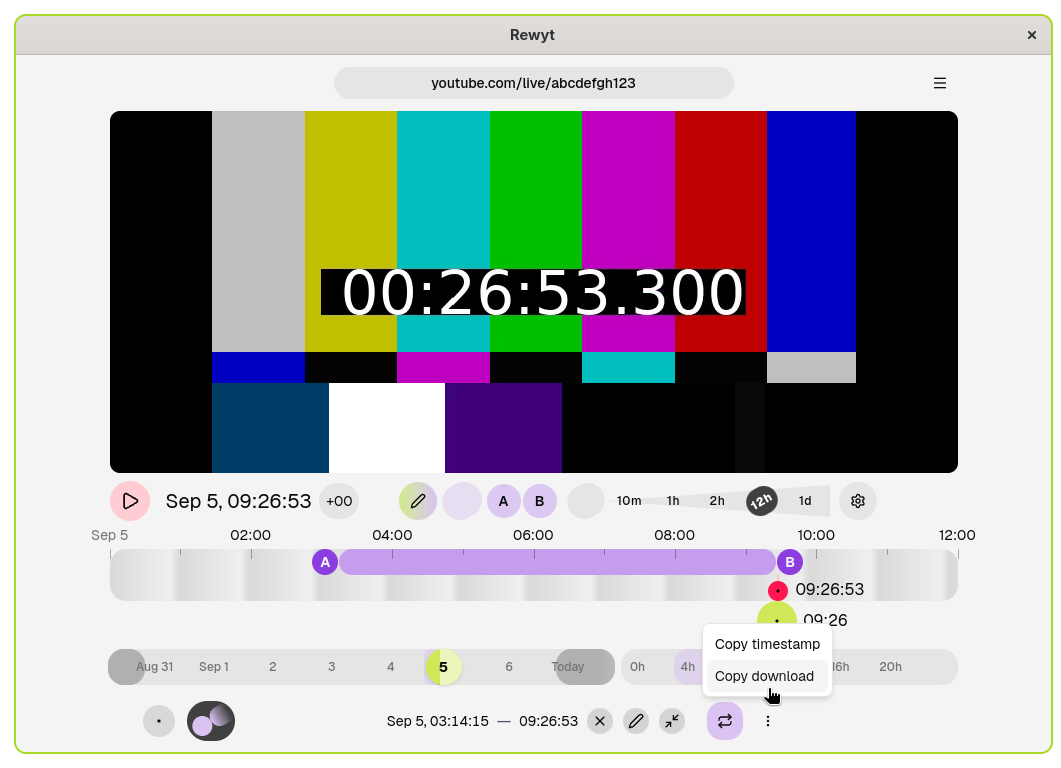
Open the Highlight tab at the bottom of the interface. Click More, then select Copy download. This copies ypb’s download command with an interval timestamp and YouTube video ID:
ypb download -i 2026-09-05T03:14:15+00:00/2026-09-05T09:26:53+00:00 abcdefgh123
- Save the clip
Run the copied command:
When it finishes, you will have the clip as a video file in your working directory.
See also
See Create a time-lapse video to turn your clip into a time-lapse.