Ypb — A playback for YouTube live streams
Rewind to past moments in live streams and play or download excerpts
Ypb is a playback tool for YouTube live streams written in Go. It provides MPEG-DASH access to past moments in live streams, allowing you to rewind beyond the web player’s limits, play selected excerpts instantly in any compatible player, or download them as local files.
Further reading
Before you begin
- Quickstart — Showcase of main usage scenarios
- Installation guide — How to install and run ypb
Tutorials
- Create a time-lapse video — Capture frames and assemble them into a video
Reference
- Command Line Interface — Overview of the command line interface
Get started with ypb
This tutorial shows how to install ypb and demonstrates its main usage
scenarios.
You will explore two running modes: download and serve. We will download a live stream excerpt, explaining the main command options. Next, we will see how to play past moments without downloading.
Installation
There are two ways to get ypb running: install from pre-built binaries or run in
a container. The choice depends on what’s already installed on your system and
your preferences.
Install from binaries
Ypb requires yt-dlp and the related
dependencies. If you already have a
working yt-dlp installation on your computer (ensure it is in your PATH),
the quickest way to start is to download the pre-built binaries.
Use the links from the latest release below for your platform and architecture:
| Linux | macOS | Windows | |
|---|---|---|---|
| AMD64 | ypb-linux-amd64.zip | ypb-darwin-amd64.zip | ypb-windows-amd64.zip |
| ARM64 | ypb-linux-arm64.zip | ypb-darwin-arm64.zip | ypb-windows-arm64.zip |
Download and unzip a file to your working directory.
Verify the version with the following command:
Linux/macOS
chmod +x ypb && ./ypb version
Windows
(Type ypb.exe instead of ypb; no installation needed.)
.\ypb.exe version
See Pre-built binaries for more details.
Try in a container
Running in a container allows you to try ypb in an isolated environment with all required dependencies pre-installed.
Prerequisites: Podman or Docker
macOS/Windows only: Initialize the Podman machine (one-time setup):
podman machine init && podman machine start
Pull the container image and verify the version:
podman pull ghcr.io/xymaxim/ypb
podman run --rm ghcr.io/xymaxim/ypb version
To run commands with access to your current directory:
podman run --rm -v .:/content ghcr.io/xymaxim/ypb ...
See Container image for creating recommended aliases and more details.
Download excerpts
Let’s start by downloading a small excerpt from a live stream.
If you are not sure what to watch, the Cornell Lab Bird Cams project provides access to beatiful bird cam streams across the world. As an example, let’s watch at the Northern Royal Albatross nesting at Taiaroa Head, New Zealand.
To get the last one-minute excerpt from the YouTube
stream, run this command by providing
the rewind interval (-i/--interval) and YouTube video ID (required
argument):
$ ypb download --interval 1m/now Mm_zVDDUeNA
(<<) Collecting info about https://www.youtube.com/live/Mm_zVDDUeNA...
WARNING: [youtube] No supported JavaScript runtime could be found. Only deno is
enabled by default; to use another runtime add --js-runtimes RUNTIME[:PATH] to
your command/config. YouTube extraction without a JS runtime has been
deprecated, and some formats may be missing. See
https://github.com/yt-dlp/yt-dlp/wiki/EJS for details on installing one
Stream 'Live & Just Hatched! Royal Albatross Cam - NZ Dept. of Conservation | Cornell Lab' is alive!

(<<) Locating start and end moments...
Actual start: Sun, 08 Feb 2026 11:22:50 +0000 (-2s), sq=1647523
  Actual end: Sun, 08 Feb 2026 11:23:55 +0000, sq=1647535

(<<) Downloading and merging media...
yt-dlp: [generic] Extracting URL: http://localhost:8080/mpd
yt-dlp: [generic] mpd: Downloading webpage
yt-dlp: WARNING: [generic] Falling back on generic information extractor
yt-dlp: [generic] mpd: Extracting information
yt-dlp: [info] mpd: Downloading 1 format(s): 137+140
yt-dlp: [dashsegments] Total fragments: 13
yt-dlp: [download] Destination: Live-and-Just-Hatched-Royal_Mm_zVDDUeNA_20260208T112250+00_1m.f137.mp4
yt-dlp: [download] 100.0% of ~   1.00KiB at      0.00B/s ETA Unknown (frag 0/13)
...
yt-dlp: [Merger] Merging formats into "Live-and-Just-Hatched-Royal_Mm_zVDDUeNA_20260208T112250+00_1m.mp4"
yt-dlp: Deleting original file Live-and-Just-Hatched-Royal_Mm_zVDDUeNA_20260208T112250+00_1m.f137.mp4 (pass -k to keep)
yt-dlp: Deleting original file Live-and-Just-Hatched-Royal_Mm_zVDDUeNA_20260208T112250+00_1m.f140.m4a (pass -k to keep)
Warning
You may see warnings about a missing JavaSript runtime, if you have not installed or enabled it:
WARNING: [youtube] No supported JavaScript runtime could be found. Only deno is
enabled by default; to use another runtime add --js-runtimes RUNTIME[:PATH] to
your command/config. YouTube extraction without a JS runtime has been
deprecated, and some formats may be missing. See
https://github.com/yt-dlp/yt-dlp/wiki/EJS for details on installing one
You may also get HTTP 403 errors (approximately every 30 seconds) during the download:
time=2026-02-08T11:23:05.127+00:00 level=WARN msg="got transient HTTP error,
retrying" status=403 method=GET url=...
While this currently works by retrying and collecting video info again, it is highly recommended to set up the additional dependencies to help avoid such errors.
As you can see, downloading consists of three steps: (1) collecting video
information, (2) locating start and end moments, and (3) the download itself
with audio and video merging at the end. The first and third stages are carried
out by yt-dlp.
Once the download finished, a single MP4 file can be found in the current working directory:
Live-and-Just-Hatched-Royal_Mm_zVDDUeNA_20260208T112250+00_1m.mp4
Specify formats
By default, we let yt-dlp choose the audio and video formats automatically (it
selects the best available quality). This gives you the flexibility to use
familiar yt-dlp options or even your existing configuration file.
You can pass options directly to yt-dlp by adding them after the --
separator.
See Pass options to yt-dlp for more details and examples.
For example, let’s use the yt-dlp’s -f option to download only the best
quality audio:
$ ypb download -i 30s/now Mm_zVDDUeNA -- -f bestaudio -x
Running yt-dlp -F ... can be helpful here to list all available formats:
$ yt-dlp -F --live-from-start Mm_zVDDUeNA
[youtube] Extracting URL: Mm_zVDDUeNA
[youtube] Mm_zVDDUeNA: Downloading webpage
[youtube] Mm_zVDDUeNA: Downloading android sdkless player API JSON
[youtube] Mm_zVDDUeNA: Downloading web safari player API JSON
[youtube] Mm_zVDDUeNA: Downloading MPD manifest
[info] Available formats for Mm_zVDDUeNA:
ID  EXT RESOLUTION FPS │   TBR PROTO │ VCODEC        VBR ACODEC      ABR ASR MORE INFO
─────────────────────────────────────────────────────────────────────────────────────────────────
139 m4a audio only     │   64k dashG │ audio only        mp4a.40.5   64k 22k DASH audio, m4a_dash
140 m4a audio only     │  144k dashG │ audio only        mp4a.40.2  144k 44k DASH audio, m4a_dash
160 mp4 256x144     15 │  212k dashG │ avc1.42c00b  212k video only          DASH video, mp4_dash
133 mp4 426x240     30 │  456k dashG │ avc1.4d4015  456k video only          DASH video, mp4_dash
134 mp4 640x360     30 │ 1008k dashG │ avc1.4d401e 1008k video only          DASH video, mp4_dash
135 mp4 854x480     30 │ 1350k dashG │ avc1.4d401f 1350k video only          DASH video, mp4_dash
136 mp4 1280x720    30 │ 2684k dashG │ avc1.4d401f 2684k video only          DASH video, mp4_dash
137 mp4 1920x1080   30 │ 5019k dashG │ avc1.640028 5019k video only          DASH video, mp4_dash
See
yt-dlp’s Format selection for the option syntax and some examples.
Specify start and end
The interval start and end moments supports flexible formats including date and times, durations, keywords, and even time arithmetic expressions.
The local time in New Zealand is UTC+12 or UTC+13 during daylight saving, and it might be nighttime on the stream depending on your location. For example, let’s see what’s on the stream at noon:
# If it is already noon there
$ ypb download -i '12:00+13/1m' Mm_zVDDUeNA

# Or noon yesterday
$ ypb download -i '12:00+13 - 1d/1m' Mm_zVDDUeNA
See Specifying the rewind interval for the reference on interval part formats.
Serve and play excerpts
Now let’s explore another feature: play without downloading.
Start a playback server
This requires us to start a playback in serve mode:
$ ypb serve Mm_zVDDUeNA
(<<) Served started and listening on http://localhost:8080
As you see, we are not using the interval option here. Format selection is also not applicable. The playback server is now running and waiting for our requests.
Send rewind requests
To rewind an excerpt, open another terminal and type:
curl localhost:8080/mpd/30m--now
This should return the raw content of the composed static MPEG-DASH manifest.
The rewind path parameter /mpd/{interval} has the same format as the
-i/--interval option except that it should be properly URL escaped: use --
instead of /, avoid whitespaces or use percent encoding.
See the API reference for available endpoints.
Play stream excerpts
Now the intriguing part: playing the excerpt.
ffplay -autoexit -protocol_whitelist file,http,https,tcp,tls \
  localhost:8080/mpd/30m--now
The option -protocol_whitelist is required to allow ffplay openining the
manifest and fetching media segments.
However, the choice is not limited to ffplay: you can use any MPEG-DASH
compatible player you prefer.
Download media
As a bonus, let’s see how to download media content from the composed manifest.
This is actually almost how ypb download works behind the scenes:
yt-dlp -o output.mp4 http://localhost:8080/mpd/30m--now
Other downloader options: FFmpeg, GPAC’s MP4Box, or dash-mpd-cli.
Install
Ypb works on Linux, macOS, and Windows.
There are two installation methods available:
- Pre-built binaries: Install platform-specific binaries along with additional dependencies
- Container image: Run in a container with all dependencies bundled
Choosing installation method
The choice depends on your current setup and usage:
| Feature | Pre-built binaries | Container image |
|---|---|---|
| Setup | You already have yt-dlp and FFmpeg installed with additional dependencies | You want a self-contained setup with all dependencies |
| Installation | Manual installation of binaries and dependencies | Requires Podman or Docker |
| Updates | Manual updating of all dependencies | Updating container image |
Requirements
While ypb itself is lightweight, it relies on yt-dlp:
-
yt-dlp: For video info extraction and downloading. Nightly builds are recommended. If you use binaries, update with:
yt-dlp --update-to nightly -
FFmpeg (optional): For muxing downloads with
ypb download.
Additional dependencies
The following dependencies are optional but strongly recommended:
-
External JavaScript runtime: Required for full YouTube support
-
Proof-of-Origin (PO) token provider plugin: Required to avoid HTTP 403 errors
Pre-built binaries
Prerequisites
Ensure the following requirements are installed based on your intended usage:
ypb serve: yt-dlp with additional dependencies (to avoid 403 HTTP errors)ypb download: All of the above plus FFmpeg (for muxing during downloads)
Install from binaries
Pre-built binaries for different platforms are available on the GitHub latest release page.
Linux/macOS
Download the binary for your operating system using the links above, and place
it to a directory that is in your PATH. Make the binary executable with chmod +x.
Once installed, verify the installation:
ypb version
Windows
Download the binary using the links above, and extract it to a permanent
location such as C:\Program Files\ypb\. Add this directory to your system
PATH via Environment Variables settings to make the binary accessible from any
location in PowerShell.
Install from source
If you have Go installed, you can build ypb from source:
go install github.com/xymaxim/ypb@latest
Note: this is not recommended unless you need a development version.
Container image
Prerequisites
No additional dependencies required: the container image includes all necessary components (yt-dlp, FFmpeg, and additional dependencies).
You’ll need either Podman (recommended) or Docker.
Initial setup
On macOS and Windows, Podman requires a virtual machine. Initialize and start it once:
podman machine init
podman machine start
The machine will automatically start on reboots. You can verify it is running:
podman machine list
Pull the image
Pull the latest container image from GitHub Container Registry:
podman pull ghcr.io/xymaxim/ypb
Usage
Basic commands
Run ypb commands directly with the container:
podman run --rm ghcr.io/xymaxim/ypb version
Recommended aliases
For easier usage, add these aliases to your shell configuration file:
# General commands like ypb version
alias ypb='podman run --rm ghcr.io/xymaxim/ypb'

# Downloads videos to current directory (mounts volume)
alias ypb-download='podman run --rm -v .:/content ghcr.io/xymaxim/ypb download'

# Starts server accessible at `http://localhost:8080` (exposes port)
alias ypb-serve='podman run --rm -p 8080:8080 ghcr.io/xymaxim/ypb serve'
Important
On SELinux-enabled systems add
:Zto the volume mount to avoid permission errors.
Manual usage without aliases
If you prefer not to use aliases or need custom configurations:
Download videos to current directory:
podman run --rm -v .:/content ghcr.io/xymaxim/ypb download
Start server on port 8080:
podman run --rm -p 8080:8080 ghcr.io/xymaxim/ypb serve
Use custom port (e.g., 3000):
podman run --rm -p 3000:8080 ghcr.io/xymaxim/ypb serve
Update the image
To update ypb and all dependecies to the latest version:
podman pull ghcr.io/xymaxim/ypb
Create a time-lapse video
In this tutorial, you will capture frames from a YouTube live stream and assemble them into a short time-lapse video. We’ll work through the full process from a single frame to a finished video using a live stream from Aurora Reykjavik – The Northern Lights Center as an example. Throughout, we’ll use the ypb capture subcommands, which extract frames with per-second precision (unlike ypb download, which operates at the segment level).
Prerequisites
Before you begin, make sure you have:
ypbinstalled (from pre-built binaries or a container)ffmpeginstalled (required byypb)
Step 1. Capture the first frame
Let’s start with a single frame to confirm everything is working correctly using the capture frame subcommand:
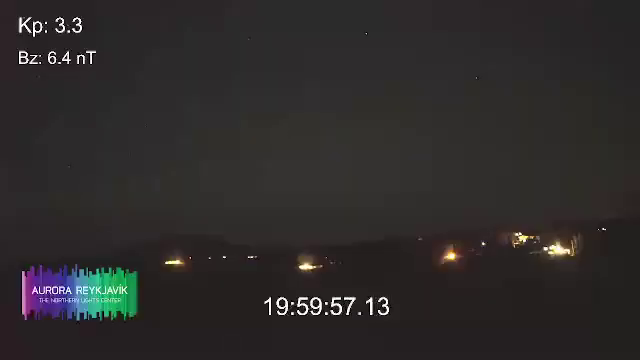
$ ypb capture frame --moment '20:00:00+00 - 1d' 0ujj4HexRpk
(<<) Collecting info about https://www.youtube.com/live/0ujj4HexRpk...
Stream 'Live Aurora stream from The Golden Circle in Iceland' is alive!
(<<) Locating and capturing the moment...
Frame to be captured: Sun, 15 Feb 2026 20:00:00 +0000, sq=38945
Success! Saved to 'Live-Aurora-stream-from-The_0ujj4HexRpk_20260215T200000+00.png'
Note
All commands in this tutorial were supposed to run on February 16, 2026. The flag
20:00:00+00 - 1dsubtracts one day from the given time, so it means yesterday at 20:00 UTC.
Notice that the in-video timestamp is about 3 seconds earlier than the moment we requested. This is a live stream delay. To get a frame where the on-screen clock reads exactly 20:00:00, we need to shift the requested moment forward by that amount:
ypb capture frame --moment '20:00:03+00 - 1d' 0ujj4HexRpk
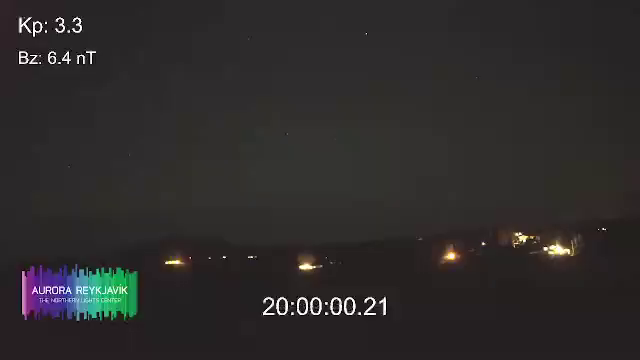
Now the timestamp matches our request. We’ll apply this 3-second offset to all subsequent commands.
Step 2. Capture all night
Nautical twilight in Reykjavík ran from 19:49 to 07:35 on February 15. Let’s
capture it using the capture timeline
subcommand with 30-minute intervals to get a quick overview of potential aurora
activity. The -e/--every flag sets the interval between frames:
$ ypb capture timelapse -i '19:30:03+00 - 1d/07:30:03+00' -e 30m 0ujj4HexRpk
(<<) Collecting info about https://www.youtube.com/live/0ujj4HexRpk...
Stream 'Live Aurora stream from The Golden Circle in Iceland' is alive!

(<<) Locating start and end moments... done.
Will capture 25 frames at 30m intervals:
   Frame 0: Sun, 15 Feb 2026 19:30:03 +0000
   Frame 1: Sun, 15 Feb 2026 20:00:03 +0000
                          ...
  Frame 22: Mon, 16 Feb 2026 07:30:03 +0000

(<<) Capturing frames to 'Live-Aurora-stream-from-The_0ujj4HexRpk_20260215T193003+00_e30m'...
   0% |                                                | (0/23, 0 it/hr) [0s:0s]
Tip
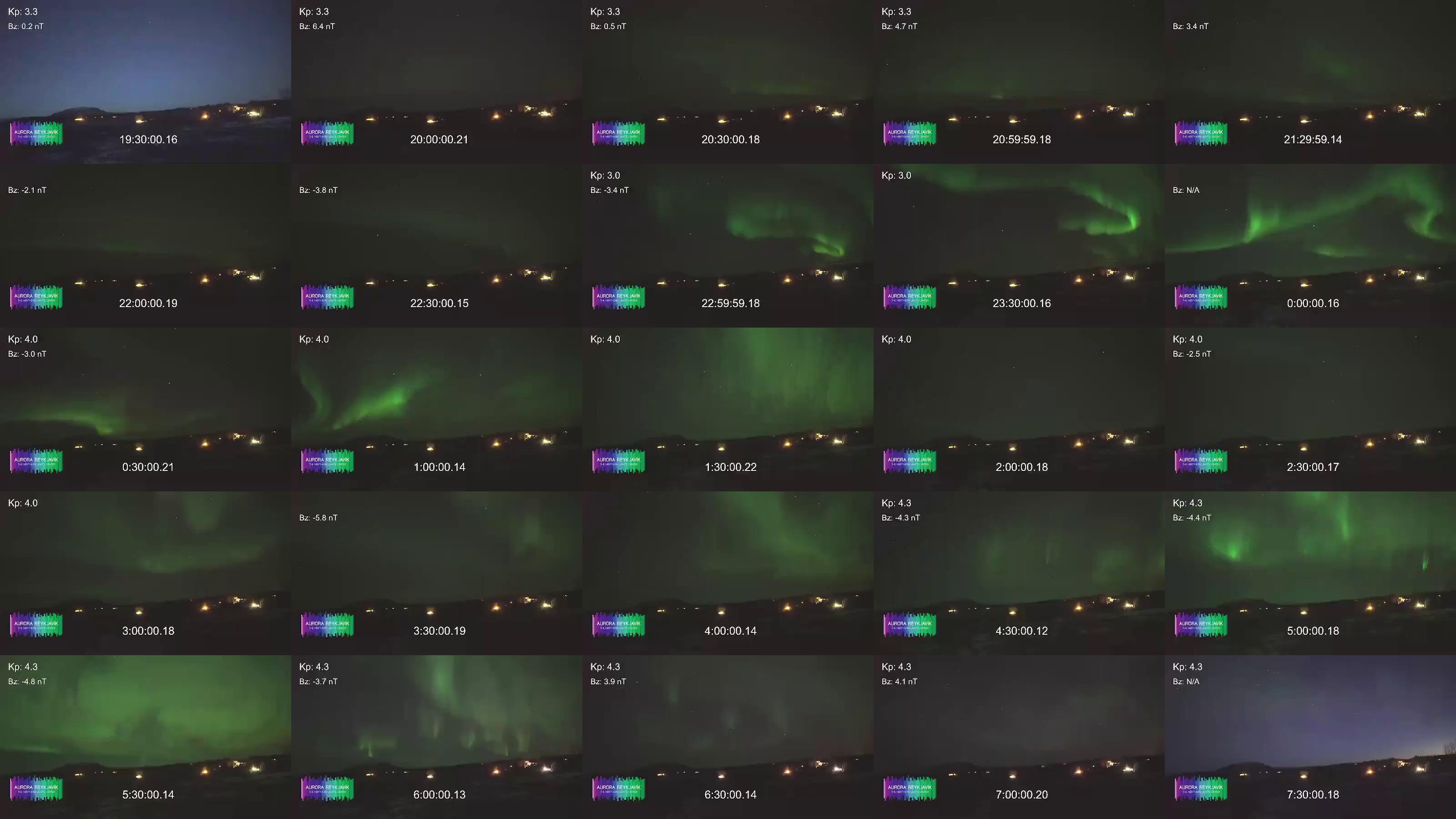
The contact sheet above was created with ImageMagick:
montage *.png -tile 5x5 -mode concatenate grid.jpg
It was a clear, moonless night with active aurora. The bright flashes are cleary visible, but it would be more interesting to get more detailed frames. One of the brightest activities appears to be around 22:30 to 00:30:

Let’s capture this fragment at finer intervals of 5 minutes to see the aurora’s movement in more detail:
ypb capture timelapse -i '22:30:03+00 - 1d/00:30:03+00' -e 5m 0ujj4HexRpk
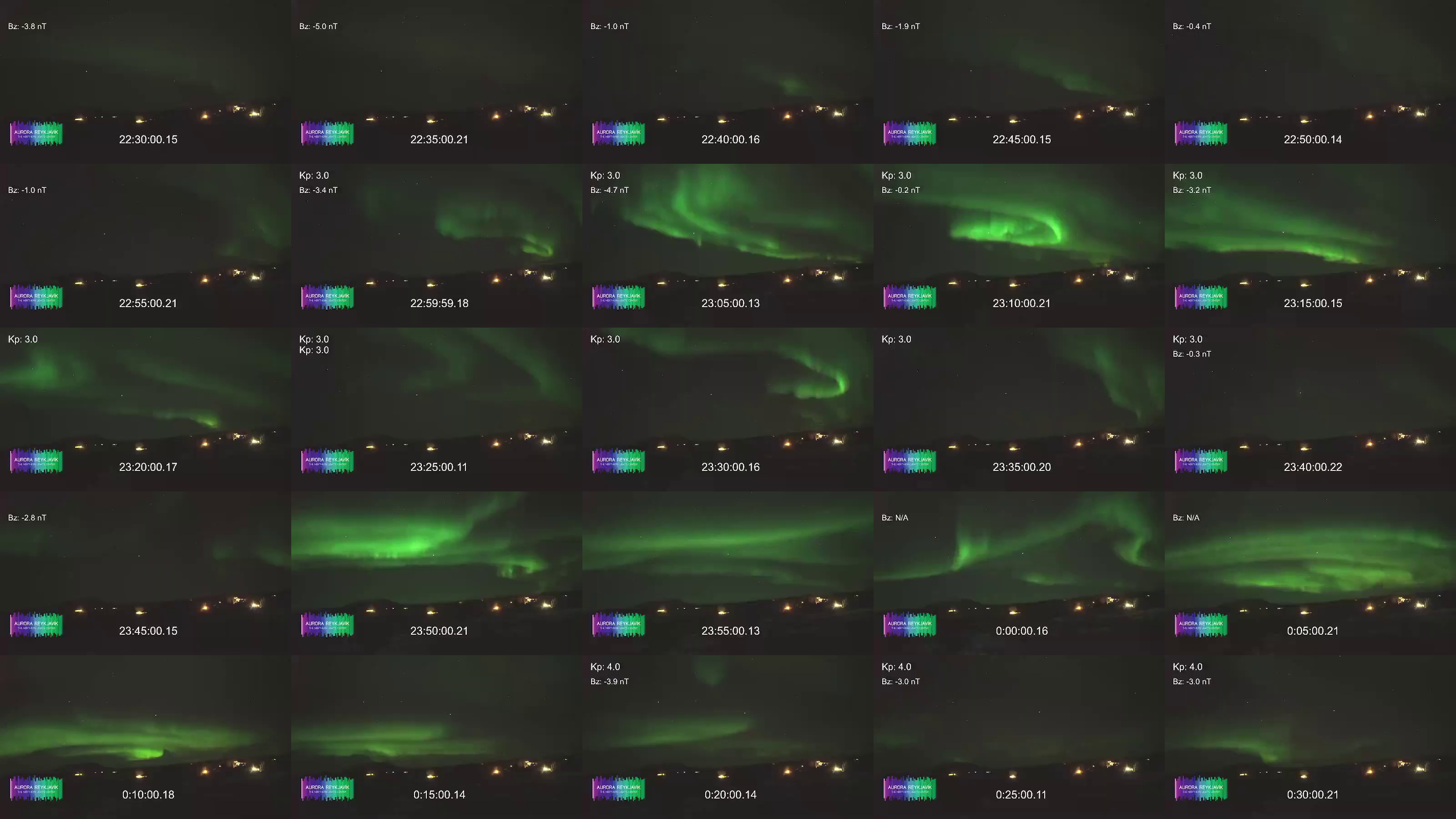
Beautiful! This is the fragment we’ll use for the final video.
Step 3: Plan the final capture
Before capturing hundreds of frames, calculate the output video length.
We want to cover 50 minutes of footage (3,000 seconds) and play the result back at 24 fps. With a 5-second capture interval:
- Total frames: 3,000 s / 5 s = 601 frames
- Output video length: 601 frames / 24 fps = 25 s
25 seconds is a reasonable length for a time-lapse. If you want a longer or shorter video, adjust the interval or the playback rate accordingly.
Step 4. Capture the final frames
Now run the full capture over the 50-minute fragment at 5-second intervals:
$ ypb capture timelapse -i '22:50:03+00 - 1d/23:40:03+00' -e 5s 0ujj4HexRpk
$ tree Live-Aurora-stream-from-The_0ujj4HexRpk_20260215T225003+00_e5s
Live-Aurora-stream-from-The_0ujj4HexRpk_20260215T225003+00_e5s
├── Live-Aurora-stream-from-The_0ujj4HexRpk_20260215T225003+00_e5s_0000.png
├── Live-Aurora-stream-from-The_0ujj4HexRpk_20260215T225003+00_e5s_0001.png
├── Live-Aurora-stream-from-The_0ujj4HexRpk_20260215T225003+00_e5s_0002.png
    ...
└── Live-Aurora-stream-from-The_0ujj4HexRpk_20260215T225003+00_e5s_0600.png

1 directory, 601 files
Step 5. Assemble the video
With all frames captured, use ffmpeg to convert the frames into a
video:
$ ffmpeg -r 24 -i pattern_type glob -i "*.png" -c:v libsvtav1 -y output.mp4
Input #0, image2, from '*.png':
  Duration: 00:00:25.04, start: 0.000000, bitrate: N/A
  Stream #0:0: Video: png, rgb24(pc, gbr/unknown/unknown), 640x360, 24 fps, 24 tbr, 24 tbn
Stream mapping:
  Stream #0:0 -> #0:0 (png (native) -> av1 (libsvtav1))
Press [q] to stop, [?] for help
Svt[info]: -------------------------------------------
Svt[info]: SVT [version]:       SVT-AV1 Encoder Lib v3.1.2
Svt[info]: SVT [build]  :       GCC 15.2.1 20250924 (Red Hat 15.2.1-2)   64 bit
Svt[info]: -------------------------------------------
Svt[info]: Level of Parallelism: 4
Svt[info]: Number of PPCS 107
Svt[info]: [asm level on system : up to sse4_1]
Svt[info]: [asm level selected : up to sse4_1]
Svt[info]: -------------------------------------------
Svt[info]: SVT [config]: main profile   tier (auto)     level (auto)
Svt[info]: SVT [config]: width / height / fps numerator / fps denominator               : 640 / 360 / 24 / 1
Svt[info]: SVT [config]: bit-depth / color format                                       : 8 / YUV420
Svt[info]: SVT [config]: preset / tune / pred struct                                    : 8 / PSNR / random access
Svt[info]: SVT [config]: gop size / mini-gop size / key-frame type                      : 161 / 32 / key frame
Svt[info]: SVT [config]: BRC mode / rate factor                                         : CRF / 35
Svt[info]: SVT [config]: AQ mode / Variance Boost                                       : 2 / 0
Svt[info]: SVT [config]: sharpness / luminance-based QP bias                            : 0 / 0
Svt[info]: -------------------------------------------
Output #0, mp4, to 'output.mp4':
  Metadata:
    encoder         : Lavf61.7.100
  Stream #0:0: Video: av1 (av01 / 0x31307661), yuv420p(tv, progressive), 640x360, q=2-31, 24 fps, 12288 tbn
      Metadata:
        encoder         : Lavc61.19.101 libsvtav1
[out#0/mp4 @ 0x56502bfa4380] video:500KiB audio:0KiB subtitle:0KiB other streams:0KiB global headers:0KiB muxing overhead: 0.517067%
frame=  601 fps= 67 q=35.0 Lsize=     503KiB time=00:00:25.00 bitrate= 164.8kbits/s speed=2.77x
Here is the output video: https://video.liberta.vip/w/6egVMr9pLwwGi32o3tg6Gg
The key options:
-r 24— set output frame rate (frames per second) to 24 fps-pattern_type glob -i "*.png"— match all PNG files in the current directory-c:v libsvtav1— encode using the SVT-AV1 codec
Note
On Windows, glob patterns are not supported. Use the explicit numeric pattern instead:
-i Live-Aurora-..._e5s_%04d.png
We used the SVT-AV1 encoder here for its excellent balance of compression and speed, but any encoder will work. To see what’s available on your machine:
ffmpeg -hide_banner -encoders
Useful links
- https://en.vedur.is/weather/forecasts/aurora/ — Aurora forecast from the Icelandic Met Office
- https://aurorareykjavik.is/aurora-forecast/ — Aurora forecast on Aurora Reykjavik
- https://www.youtube.com/@aurorareykjavik/ — Aurora Reykjavik on YouTube
Command Line Interface
Usage: ypb <command> [flags]

A playback for YouTube live streams

Flags:
  -h, --help       Show context-sensitive help.
  -v, --verbose    Show verbose output.

Commands:
  capture frame --of="png" --moment=STRING <stream> [flags]
    Capture a single frame

  capture timelapse --of="png" --every=DURATION --interval=STRING <stream> [flags]
    Create a time-lapse

  download --interval=STRING <stream> [<ytdlp-options> ...] [flags]
    Download stream excerpts

  serve <stream> [flags]
    Start playback server

  version [flags]
    Show version info and exit

Run "ypb <command> --help" for more information on a command.
Commands
capture
Usage: ypb capture <command> [flags]

Capture single frame or time-lapse sequence

Flags:
  -h, --help       Show context-sensitive help.
  -v, --verbose    Show verbose output.

Commands:
  capture frame --of="png" --moment=STRING <stream> [flags]
    Capture a single frame

  capture timelapse --of="png" --every=DURATION --interval=STRING <stream> [flags]
    Create a time-lapse
frame
Usage: ypb capture frame --of="png" --moment=STRING <stream> [flags]

Capture a single frame

Arguments:
  <stream>    YouTube video ID

Flags:
  -h, --help             Show context-sensitive help.
  -v, --verbose          Show verbose output.

  -p, --port=8080        Port to start playback on
      --of="png"         Output image format
  -m, --moment=STRING    Moment to capture
timelapse
Usage: ypb capture timelapse --of="png" --every=DURATION --interval=STRING <stream> [flags]

Create a time-lapse

Arguments:
  <stream>    YouTube video ID

Flags:
  -h, --help               Show context-sensitive help.
  -v, --verbose            Show verbose output.

  -p, --port=8080          Port to start playback on
      --of="png"           Output image format
  -e, --every=DURATION     Capture frame every duration
  -i, --interval=STRING    Time or segment interval
download
Usage: ypb download --interval=STRING <stream> [<ytdlp-options> ...] [flags]

Download stream excerpts

Arguments:
  <stream>                 YouTube video ID
  [<ytdlp-options> ...]    Options to pass to yt-dlp (use after --)

Flags:
  -h, --help               Show context-sensitive help.
  -v, --verbose            Show verbose output.

  -p, --port=8080          Port to start playback on
  -i, --interval=STRING    Time or segment interval
Passing options to yt-dlp
Additional options can be passed directly to yt-dlp using the --
separator. Everything after -- is forwarded to the underlying
yt-dlp process.
Behind the scences, ypb calls yt-dlp with a custom -o/--output template:
the only option that is overriden by default. This behavior can be changed as
follows:
ypb download -i <interval> <stream> -- -o output.mp4
For a complete list of available options, see the yt-dlp documentation.
Important
Not all
yt-dlpoptions are compatible withypb’s workflow. Incompatible options will not have effect. For example, the network options are not supported.
serve
Usage: ypb serve <stream> [flags]

Start playback server

Arguments:
  <stream>    YouTube video ID

Flags:
  -h, --help         Show context-sensitive help.
  -v, --verbose      Show verbose output.

  -p, --port=8080    Port to start playback on
Specifying the rewind interval
The rewind interval is specified using the-i/--interval option. An
interval consists of start and end parts by either / or --:
$ ypb download -i <start>/<end>
$ ypb download -i <start>--<end>
Absolute and relative moments
The interval parts refer to absolute or relative points (moments) in a stream. Absolute moments independently indicate a specific point in time, while relative moments are specified in relation to other moments.
Absolute moments can be further divided into direct and indirect types. Direct moments correspond to exact stream media segments, while indirect moments require locating a segment.
-
Absolute moments
- Direct: sequence numbers, the
nowkeyword - Indirect: date and times, Unix timestamps, time arithmetic expressions
- Direct: sequence numbers, the
-
Relative moments
- Time durations
Moment values
Date and time
<date-time> = <date>"T"<time>"±"<offset>,
where <date> = YYYY"-"MM"-"DD, <time> = "hh":"mm":"ss,
and <offset> = "±"hh":"mm.
This format follows the extended ISO 8601 format or RFC3339
Here is an example of the complete representation with full time and partial time offset in UTC:
2026-01-02T10:20:30+00
The time component can be provided with reduced precision by omitting lower-order components, which are assumed to be “00” (the date part must always be complete):
# Complete date plus hours and minutes
2026-01-02T10:20+00

# Complete date plus hours only
2026-01-02T10+00
Zulu time
Zulu time refers to UTC and is denoted by the letter “Z” used as a suffix instead of a time offset:
2026-01-02T10:20:30Z
Local time
To represent local time, omit the time offset. For example, if you’re in the UTC+02 time zone, the above example would be:
2026-01-02T12:20:30
Time of today
To refer to a time of the current day, you can omit the date and time offset:
# Full time with time offset
10:20:30+00

# Full time in local time zone
10:20:30

# Hours and minutes only
10:20
Time duration
-i/--interval <start>/<duration>or-i/--interval <duration>/<end>,
where <duration> = dd"d"hh"h"mm"m"ss"s".
Sometimes it is more convenient to specify an interval using a duration. Duration strings
use single-letter designators for time components: days (d), hours
(h), minutes (h), and seconds (s).
The following examples represent the same interval from 10:30 to 12:00 (local time):
# Specified by start time and duration
--interval 10:30/1h30m ...

# Specified by duration and end time
--interval 1h30m/12:00 ...
Time arithmetic expression
<expression>
where <expression> = <operand> "±" <duration> and <operand> is any absolute
moment. The expression also accepts the now keyword:
<expression> = "now" "-" <duration>.
Input moments can be represented as arithmetic expressions combining absolute
moments and durations. Such temporal arithmetic supports both addition and
subtraction. For example, the expression 10:30 - 30s results in 10:00. Use
the now keyword to refer to the current time.
Note that option values containing whitespace must be quoted.
# Subtraction between time and duration
--interval '2026-01-02T10:20:30 - 1d2h30m/30m' ...

# An excerpt centered around some specific time today
--interval '12:00 - 1m/12:00 + 5m' ...

# An excerpt spanning from yesterday 23:00 to today 01:00
--interval '23:00 - 1d/01:00' ...

# A 30-minute excerpt starting from one hour ago
--interval 'now - 1h/30m' ...
Sequence numbers
<sequence-number> = [0-9]+
In addition to times, you can specify the sequence number (positive, starting from 0) of an MPEG-DASH media segment to reference a specific point in a live stream. Sequence numbers are typically used when a segment has already been identified.
Keywords
‘Earliest’ (TODO)
-i/--interval earliest/<end>
To reference the earliest available moment, use the earliest
keyword for the start part:
--interval earliest/30m
This refers to either the beginning of the stream (the very first media segment) or the earliest available segment if the stream has been running longer than the available rewind window.
‘Now’
-i/--interval <start>/now
To reference the current moment, use the now keyword.
Its exact meaning depends on the running mode:
| Mode | Commands | Resolves to |
|---|---|---|
| Strict | capture, download | App start-up time |
| Non-strict | serve | End of the most recently available segment |
Specifying the output filename
By default, downloaded files are saved in the current working directory with names composed of the adjusted title, YouTube video ID, start time, and duration:
$ ypb download -i 2026-01-02T10:20:30+00/30s abcdefgh123 && ls
Stream-title_abcdefgh123_20260102T102030+00_30s.mp4
To customize output names, use the yt-dlp’s -o/--output
option by specifying
a full filename:
$ ypb download ... -- -o output/path.mp4 && ls output/*
output/path.mp4
Note that since yt-dlp downloads the MPEG-DASH manifest via the general
extractor rather than the YouTube extractor, YouTube-specific template
variables are not available.
API
Endpoints
/info
Returns information about the YouTube live stream being served.
Response
{
    "id": "0ujj4HexRpk",
    "title": "Stream title",
    "channelId": "UC6OWqjtFTsdtHAAuGWv1kPw",
    "channelTitle": "Channel name",
    "actualStartTime": "2026-01-02T10:20:30Z"
}
/mpd/{interval}
Returns an MPEG-DASH manifest for the given interval. The manifest is static when a bounded interval is provided, or dynamic when an open-ended interval is provided.
Parameters
- interval
-
The rewind interval to retrieve.
Note
See Specifying the rewind interval for all available interval format options. When using absolute timestamps, prefer the
Zsuffix for UTC (e.g.,2026-01-02T10:20:30Z) over+00:00, since+must be percent-encoded as%2B. In general, ensure the path parameter is properly URL-encoded: use--as the interval separator instead of/and avoid unencoded whitespace.
Usage examples
Rewind a 30-minute excerpt from one day ago (static):
$ curl localhost:8080/mpd/now-1d--30m
Playback starting from ten minutes ago, continuing live (dynamic):
curl localhost:8080/mpd/now-10m
Response
By default, returns the raw MPEG-DASH manifest as application/dash+xml. To
receive a JSON representation including the raw manifest and metadata, set
the Accept: application/json header.
The JSON response has the following structure:
{
    "metadata": {
        "videoTitle": "Stream title",
        "videoUrl": "https://www.youtube.com/live/...",
        "startActualTime": "2026-01-02T10:00:02Z",
        "startTargetTime": "2026-01-02T10:00:00Z",
        "endActualTime": "2026-01-02T10:30:03Z",
        "endTargetTime": "2026-01-02T10:30:00Z",
    },
    "mpd": "<?xml version=\"1.0\" ...>"
}
For dynamic manifests, endActualTime and endTargetTime are omitted.
/segments/itag/{itag}/sq/{sq}
Serves a media segment indentified by itag and sequence number.
Parameters
Response
The bytes of the requested media segment.
Changelog
The format of this changelog is based on Keep a Changelog. Versions follow Calendar Versioning.
2026.6.15
Changed
- Supress console windows on Windows
2026.6.11
Added
- Add playback and stream public packages
- Add parser for fractional seconds
- Add
/infoendpoint returning basic info about YouTube live stream
Fixed
- Set MPD@availabilityStartTime to now for dynamic DASH manifests
Changed
- Use yt-dlp’s –write-info-json to dump info JSON
- Change license from MIT to GPLv3
2026.2.24
Added
- Accept open-ended interval in
/mpd/endpoint to compose dynamic MPD
Fixed
- Pin start-up time as
nowin strict mode (downloadandcapturecommands) (#5)
Changed
- Rename
/rewind/endpoint to/mpd/ - Rename
/videoplayback/endpoint to/segments/ - Normalize MPDs to be playbable in Shaka player
- Avoid downloading same segment in capture timelapse with small intervals
- Switch to custom text progress bar in capture timelapse
2026.2.18
Changed
- Retry on connection errors (“connection reset by peer”, “connection timed out”, etc)
- Print standard output and error from external commands directly (#2)
2026.2.16
Added
- New
capture framecommand to capture a single frame - New
capture timelapsecommand to capture multiple frames
Fixed
- Incorrect 12-hour format (changed to 24-hour) in output filenames
Changed
- Rework CommandRunner to accept functional options
2026.2.12
Fixed
- Incorrect parsing of ‘now’ in interval expressions (#1)
2026.2.10
First release.