Get started with Rewyt
Learn how to install Rewyt and start rewatching YouTube live streams.
Installation
Rewyt comes as a desktop app (pre-built binary) or a web app (container).
- Desktop app: choose this if you already have
yt-dlpinstalled - Web app: choose this if you don’t, or prefer a self-contained setup
Desktop app
Download the binary for your platform from the latest release and unzip it to your working directory.
For prerequisites and platform details, see Desktop app.
Web app
Running Rewyt in containers gives you an isolated environment with yt-dlp,
ffmpeg, and ypb pre-installed, along with the PO token provider.
Prerequisites: Podman or Docker, with Compose.
macOS/Windows only, Podman: Initialize the Podman machine (one-time setup):
podman machine init && podman machine start
Pull the compose file and extract it to a local directory:
podman artifact pull ghcr.io/xymaxim/rewyt-compose
podman artifact extract ghcr.io/xymaxim/rewyt-compose ~/rewyt-app
cd ~/rewyt-app
Start the app:
podman compose up -d
Open the app in your browser:
http://localhost:8080
See Web app for configuration options and more details.
Verify installation
Open the app to see a welcome screen, where you can verify that your installation is complete. If something’s missing, you’ll see a warning describing what’s needed. Otherwise, you’re ready to go.
Initial setup
Rewyt relies on yt-dlp’s network-related options and cookies. Where you set them depends on how you installed Rewyt:
- Desktop app: uses your local yt-dlp configuration file directly
- Web app: uses a yt-dlp configuration file mounted into the container, set
by editing the
.envfile, see Configuration for details
If YouTube responds with a “Sign in to confirm you’re not a bot” error while loading a stream, you’ll need to provide cookies from a signed-in browser session. See yt-dlp’s wiki on how to export and pass cookies to yt-dlp.
Rewatch a specific moment
Open a live stream
To get started, you’ll need a live stream to rewind. If you’re not sure what to watch, the Cornell Lab Bird Cams project has beautiful bird cam streams from around the world. Let’s use the Northern Royal Albatross nesting cam at Taiaroa Head, New Zealand.
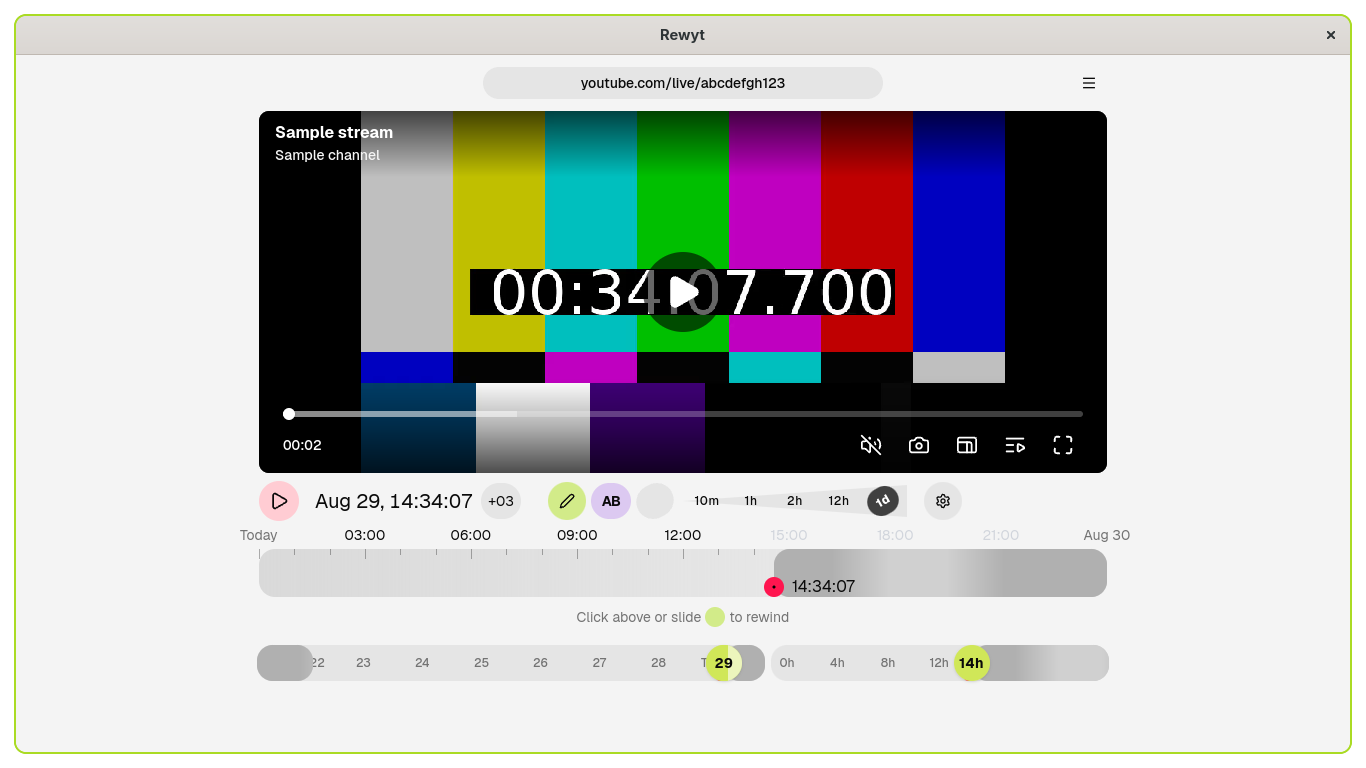
Copy the YouTube link of the live stream and paste it into the input field in the app. Wait for the stream to load. You’ll see the main interface, with the main controls, timeline, and sliders.
Set a timezone
By default, the app displays time in your local system timezone. Since you’re watching a stream from New Zealand, it’s more convenient to match the stream’s local time instead.
Click the timezone label in the time display, below the video, to open the timezone selector. Select New Zealand Standard Time (UTC+12) or New Zealand Daylight Time (UTC+13).
Click the timeline
Click anywhere on the timeline. The stream immediately rewinds to that moment and starts playing.
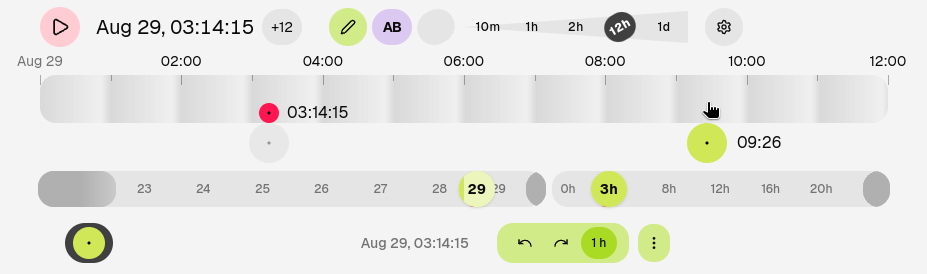
Try zooming in on the timeline for a narrower time range, then click again to land closer to the moment you want.
Control with sliders
For more precision, use the rewind slider, days slider, and day slider instead. Drag the days slider to pick a day, then drag the day slider to set a specific time within that day. Sliders set your target time without rewinding yet.
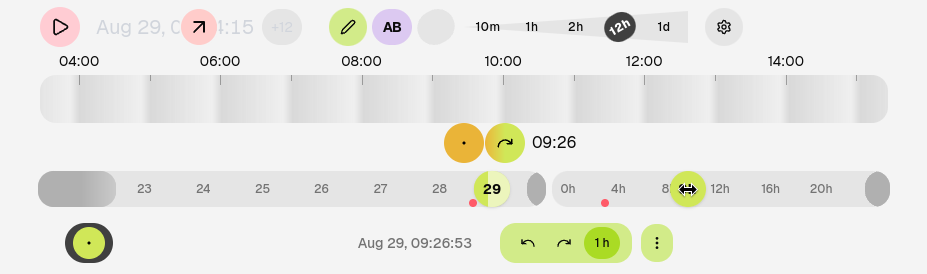
When you’re happy with your selection, click the rewind button to jump there.
You can combine both methods: use the sliders to get close to a moment before rewinding, then click the timeline to rewind to the exact moment.
Next steps
Learn how to:
- Highlight and download excerpts: save a specific part of a stream
- Share and paste timestamps: share the moment you discovered and jump to a shared timestamp